
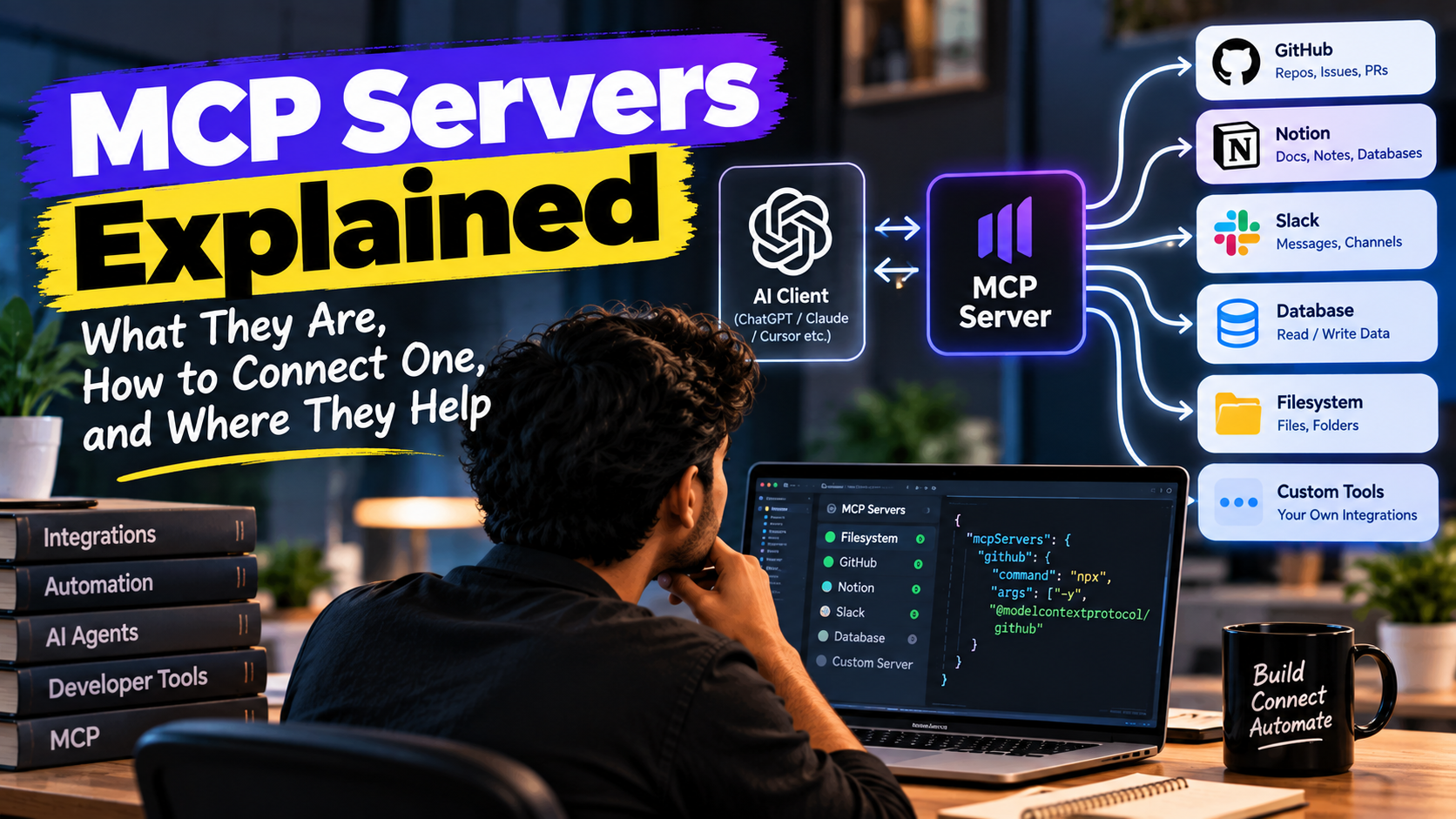
AI assistants are smart, but on their own they are stuck in a box. Ask one "how many orders did we get yesterday?" and it has no idea. It can't see your database, your CRM, your files, or your calendar. It only knows what it learned in training and what you paste into the chat.
MCP is the thing that opens that box. If you've been hearing "MCP server" everywhere and nodding along without really knowing what it means, this post is for you. No heavy theory. Just what it is, how it works, how to connect one, and where it's actually useful.
1. What is MCP, in plain words?
MCP stands for Model Context Protocol. It's an open standard, first released by Anthropic in late 2024, that defines one common way for AI apps to talk to outside tools and data.
The easiest way to picture it is USB.
Before USB, every device had its own plug. Printer, mouse, camera, all different. USB gave everyone one port, and suddenly anything worked with anything.
AI tools had the same mess. If you wanted your AI assistant to read from Google Drive, somebody had to write a custom integration. Want Slack too? Another custom integration. Switch to a different AI app? Start again from zero.
MCP is the common plug. You build the connection once, as an MCP server, and any AI app that supports MCP can use it. Today that includes Claude, ChatGPT, Cursor, VS Code and many others.
2. So what exactly is an MCP server?
An MCP server is a small program that sits between the AI and one of your systems, and tells the AI: "here is what I can do for you."
There are three pieces in the picture:
- Host: the AI app you're using (Claude, Cursor, your own chatbot).
- Client: the part inside the host that speaks MCP. You rarely think about this one.
- Server: the small program that connects to a real system, like your database, GitHub, or your CRM.
Think of a restaurant. You (the AI) don't walk into the kitchen. You read the menu and tell the waiter what you want. The MCP server is the waiter plus the menu. It shows what's available, takes the order, goes to the kitchen (your system), and brings back the result.
One server usually covers one system. A GitHub server, a Postgres server, a Google Drive server. You can plug in several at the same time.
3. What can a server offer?
An MCP server can expose three kinds of things:
- Tools: actions the AI can perform.
create_invoice,search_orders,send_message. This is the one you'll use most. - Resources: data the AI can read. A file, a database record, a document.
- Prompts: ready-made prompt templates for common tasks, like "summarise this week's leads."
Each tool comes with a name, a short description, and the inputs it needs. The AI reads those descriptions and decides on its own when to use which tool. That's why good descriptions matter so much. More on that later.
4. What happens when you ask a question?
Let's say you've connected a server for your order system and you ask: "What's the status of order 1042?"
- When the app starts, it asks the server, "what tools do you have?" The server replies with its list.
- You type your question.
- The AI looks at the tool list and sees
get_order_statusfits. - It asks the server to run that tool with
orderId: 1042. - The server queries your real database and sends back the result.
- The AI reads it and answers you in normal language: "Order 1042 was shipped yesterday and should arrive on Friday."
The important part: the AI never touches your database directly. It can only do what the server allows. You stay in control of what's exposed.
5. Local or remote: two ways servers run
Local servers run on your own computer. The AI app starts the program and talks to it directly (this is called the stdio transport). Good for things on your machine: files, a local database, your git repos.
Remote servers run on the internet behind a URL, and the app talks to them over HTTP. Good for cloud services and for sharing one server across a whole team. These normally use a login step (OAuth) so each person only sees their own data.
Rule of thumb: personal and on your laptop, go local. Shared, hosted, or used by customers, go remote.
6. How to connect an existing MCP server
Good news: for most popular tools, someone has already built the server. You just plug it in.
The easy way. In apps like Claude or ChatGPT, open the settings, find Connectors (or Integrations), pick the service, and sign in. That's it. No code.
The config way. For local servers, you add a few lines to a config file. In Claude Desktop, for example, it looks like this:
{
  "mcpServers": {
    "filesystem": {
      "command": "npx",
      "args": [
        "-y",
        "@modelcontextprotocol/server-filesystem",
        "/Users/you/Documents"
      ]
    }
  }
}
Restart the app, and the AI can now read and work with files in that folder. Other apps like Cursor and VS Code use almost the same format.
A good first step is to connect just one server for a tool you use every day and play with it for a week. You'll quickly see what's useful and what isn't.
7. How to build your own
If your system is custom, say your own CRM or an internal admin panel, you build your own server. It's less work than it sounds. There are official SDKs for TypeScript, Python, Java, Go and more.
Here is a complete working server in TypeScript with one tool:
import { McpServer } from "@modelcontextprotocol/sdk/server/mcp.js";
import { StdioServerTransport } from "@modelcontextprotocol/sdk/server/stdio.js";
import { z } from "zod";

const server = new McpServer({ name: "orders", version: "1.0.0" });

server.registerTool(
  "get_order_status",
  {
    description: "Look up the current status of an order by its order ID",
    inputSchema: { orderId: z.string() },
  },
  async ({ orderId }) => {
    const order = await findOrder(orderId); // your own database call
    return {
      content: [{ type: "text", text: JSON.stringify(order) }],
    };
  }
);

await server.connect(new StdioServerTransport());
That's the whole idea. Give the tool a name, describe it, say what input it needs, and write the function that does the work. The SDK handles the protocol.
If you already have a REST API, your MCP server is mostly a thin layer on top of it. Each tool calls one or two of your existing endpoints.
To test it, use the MCP Inspector, a small official tool that lets you call your server's tools by hand before any AI touches it.
8. Real use cases
This is where it gets practical. A few examples that work well today:
- Customer support. Connect your order system and helpdesk. The assistant can look up an order, check the delivery status and draft a reply, instead of an agent jumping between four tabs.
- Talk to your data. Connect your database with read-only access. A manager can ask "which products sold best last month?" in plain English and get an answer without waiting for someone to write a report.
- Developer workflow. Connect GitHub, your database and your error tracker. Your coding assistant can read the bug report, find the code, check the logs and open a pull request.
- Sales and CRM. "Show me leads that haven't been contacted in 7 days and draft a follow-up for each." One sentence instead of twenty clicks.
- Internal knowledge. Connect Google Drive or Notion. New staff can ask "what's our refund policy?" and get the answer from your real documents, not a guess.
- Travel and bookings. Connect a booking system so the assistant can check availability, compare options and prepare an itinerary from live data.
- Daily operations. Combine calendar, email and task servers. "What do I need to prepare for tomorrow?" becomes a real answer built from your actual schedule.
The pattern is always the same. Anywhere a person is copying information between systems or clicking through screens to answer a simple question, an MCP server can help.
9. Safety basics you shouldn't skip
Giving an AI access to real systems is powerful, so treat it with care.
- Start read-only. Let the AI look before you let it change anything.
- Give the minimum access. A support assistant doesn't need your billing tables. Use a limited database user or a scoped API key.
- Keep a human in the loop for risky actions. Deleting, paying, sending. Most AI apps ask for approval before running a tool. Leave that on.
- Only install servers you trust. An MCP server is a program running with your access. Treat a random one from the internet like any unknown software.
- Be careful with outside content. If the AI reads a web page or an email, that text could contain hidden instructions trying to trick it. This is called prompt injection, and it's the main reason not to give one assistant both untrusted content and powerful tools without checks.
- Keep secrets out of the code. API keys go in environment variables, not in the config you share.
10. Common mistakes
- Too many tools. Fifty tools confuse the AI and slow it down. Start with five good ones.
- Vague descriptions. "Gets data" tells the AI nothing. "Look up an order's status by order ID" tells it exactly when to use the tool.
- Copying your API one-to-one. Don't expose every endpoint. Design tools around what people actually ask for.
- Returning huge responses. Sending back 5,000 rows fills up the AI's memory. Return a summary or the top results, with a way to ask for more.
- Unhelpful errors. "Error 500" is useless. "No order found with that ID, check the number" lets the AI recover on its own.
The bottom line
MCP is not magic. It's a simple, shared way to let AI use your tools and data. An MCP server is just the adapter that makes one system available.
If you're curious, start small. Connect one ready-made server this week. Then pick one boring, repetitive question in your business, the kind someone answers ten times a day by checking a screen, and build a single tool for it. That one tool will teach you more than any article.
And if you'd like help building an MCP server for your own product or internal system, that's exactly the kind of work we do at vybix. Get in touch and tell us what you want your AI to be able to do.